
Slack
A cloud-based messaging platform that lets teams communicate and collaborate through organized channels, direct messages, and threads. It works by grouping conversations by topic, project, or team, with support for file sharing, search, and a wide ecosystem of app integrations and bots that bring notifications and workflows directly into the chat.
How to get responses from Hunar Voice into Slack using webhooks.
1
Create the Slack Incoming Webhook
1
Go to api.slack.com/apps → Create New App → From scratch.

2
Name it Hunar Call logs, pick your workspace, click Create App.

3
In the left sidebar, click Incoming Webhooks → toggle Activate Incoming Webhooks to On.

4
Scroll down, click Add New Webhook to Workspace.

5
Pick the channel where you want call notifications (e.g., #sales-calls) → Allow.

6
Copy the Webhook URL. It looks like
https://hooks.slack.com/services/T00.../B00.../xxxx
2
Create the Apps Script
1
Go to script.new to create a new Apps Script project.

2
Name Hunar to Slack (top left).

3
Delete the default code and paste this:
const SLACK_WEBHOOK_URL = 'paste-your-slack-webhook-url-here';
function doPost(e) {
const data = JSON.parse(e.postData.contents);
const statusEmoji = {
'COMPLETED': '✅',
'NOT_CONNECTED': '📵',
'FAILED': '❌',
'CANCELLED': '🚫'
}[data.status] || '📞';
const blocks = [
{
type: 'header',
text: { type: 'plain_text', text: ${statusEmoji} Call ${data.status} }
},
{
type: 'section',
fields: [
{ type: 'mrkdwn', text: *Number:*\n${data.to_number || 'N/A'} },
{ type: 'mrkdwn', text: *Duration:*\n${data.duration_minutes || 0} min },
{ type: 'mrkdwn', text: *Answered by:*\n${data.answered_by || 'Unknown'} },
{ type: 'mrkdwn', text: *Call ID:*\n\${data.call_id}`` }
]
}
];
if (data.result && Object.keys(data.result).length > 0) {
const resultText = Object.entries(data.result)
.map(([k, v]) => • *${k}:* ${v})
.join('\n');
blocks.push({
type: 'section',
text: { type: 'mrkdwn', text: *Result:*\n${resultText} }
});
}
if (data.recording_url) {
blocks.push({
type: 'actions',
elements: [{
type: 'button',
text: { type: 'plain_text', text: '🎧 Listen to recording' },
url: data.recording_url
}]
});
}
const response = UrlFetchApp.fetch(SLACK_WEBHOOK_URL, {
method: 'post',
contentType: 'application/json',
payload: JSON.stringify({
text: Call ${data.status}: ${data.to_number}, // fallback for mobile notifications
blocks: blocks
}),
muteHttpExceptions: true
});
console.log('Slack response:', response.getResponseCode(), response.getContentText());
return ContentService
.createTextOutput(JSON.stringify({ status: 'ok' }))
.setMimeType(ContentService.MimeType.JSON);
}
4
Replace paste-your-slack-webhook-url-here with the URL from Step 1.

5
Click Save (Cmd/Ctrl + S).

3
Deploy as a Web App
1
Click Deploy → New deployment.

2
Click the gear icon → Web app.

3
Set: Execute as: Me & Who has access: Anyone. This is required so Hunar can reach it

4
Click Deploy

5
Authorize access

6
Click Continue

7
Copy the Web app URL and click on done.

4
Add webhook event in Hunar Voice
1
Go to integrations tab, and click on the Add Webhook event button.

2
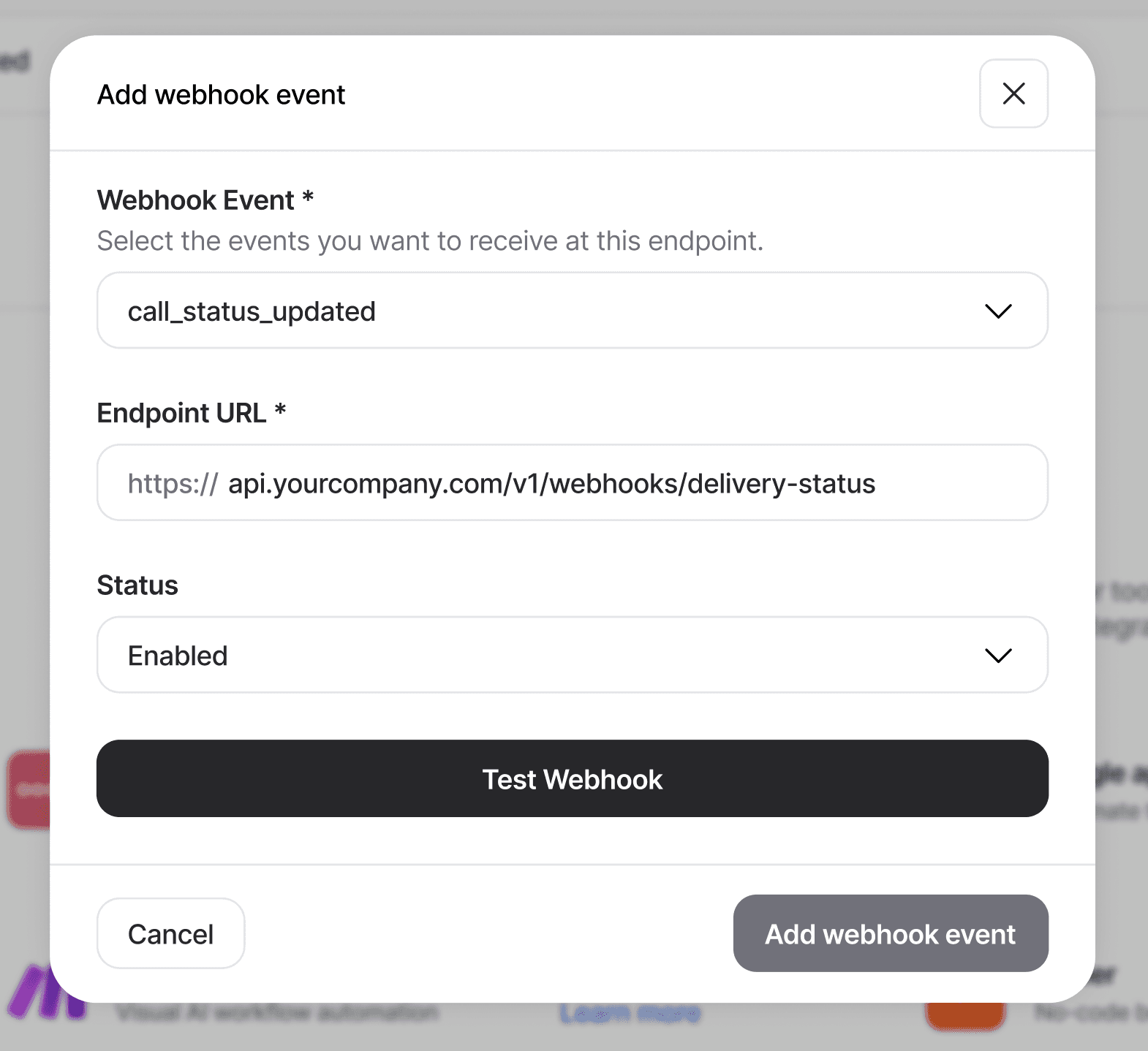
You'll see the Add Webhook modal pop up

3
Choose your webhook event, and paste the URL you got from Google Apps Script.
4
Click Test Webhook

5
Back in Slack, You should see a test row appear in your channel within a few seconds.

6
Click Add webhook event to save.

5
What to try next
1
Only notify on hot leads
wrap the UrlFetchApp.fetch call in if (data.result && data.result.interested === 'Yes') { ... }
2
@mention the right person
add <@U01ABCDE> (their Slack user ID) into the text field, or <!channel> to notify everyone.
3
Different channels for different outcomes — declare two webhook URLs in the script, pick which one to POST to based on data.status or data.result.






Ready to manage your workforce better?




Bluejay Worktech Pvt. Ltd
contact@hunar.ai
CIN: U72200HR2021PTC100129
Plot No. 1076, Sector 46, Gurgaon - 122003, Haryana, India
© 2026 | All rights reserved.
♥︎ Made with love in India.