
Make.com
A cloud-based workflow automation platform that lets you connect apps, APIs, and services to automate tasks through a visual, drag-and-drop interface. It works by building "scenarios", sequences of modules that trigger on events, process data and pass it between tools like spreadsheets, CRMs or messaging apps all without writing code.
How to get responses from Hunar Voice into make.com using webhooks.
1
Create a new Scenario in Make.com
1
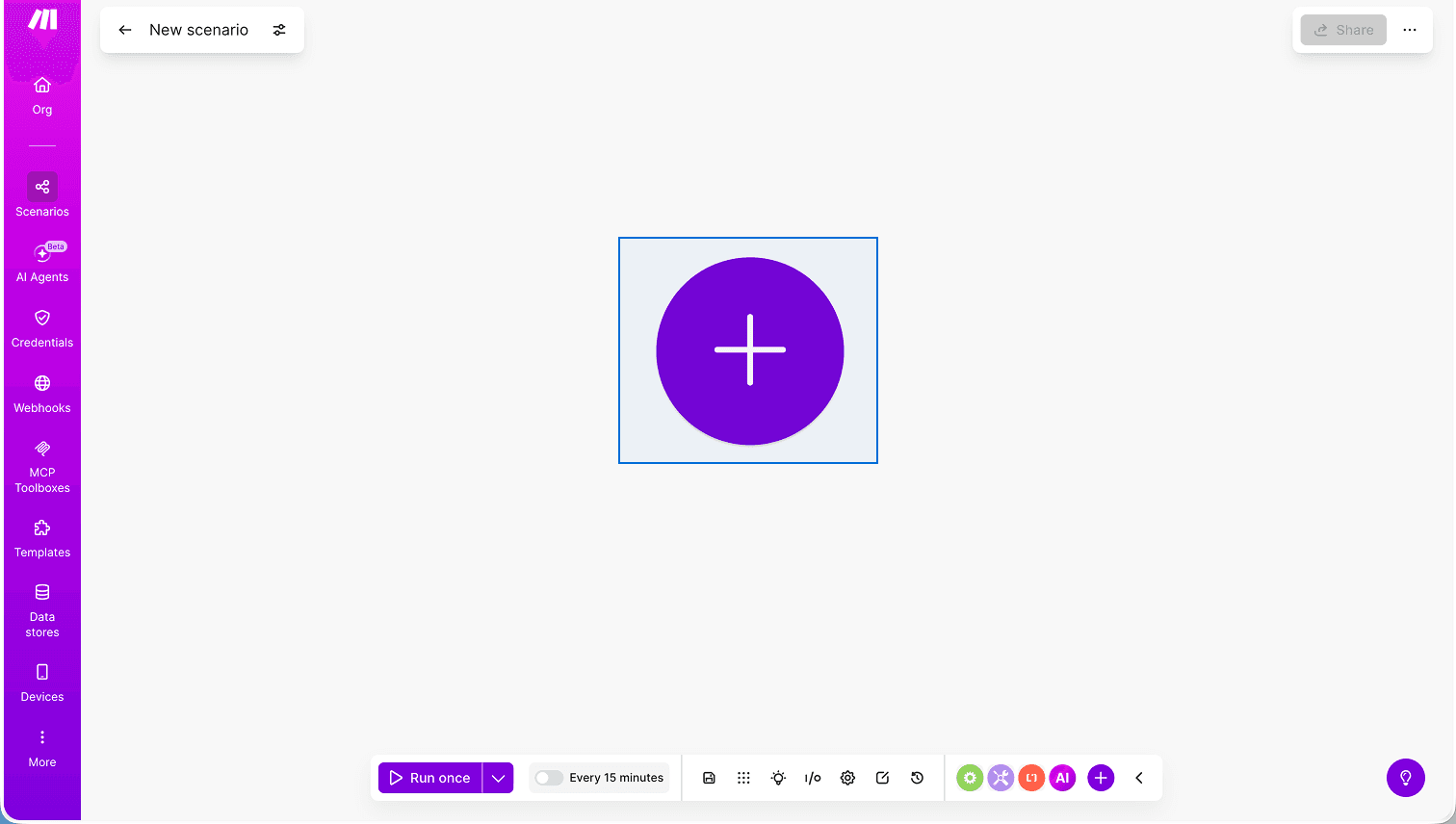
Sign into make.com and click Create a new scenario

2
Click the big + in the centre to add your first module (the trigger)
3
Search for Webhooks and select it

4
Choose Custom webhook as the trigger type

2
Create a webhook and copy the URL
1
Click on Create webhook button.

2
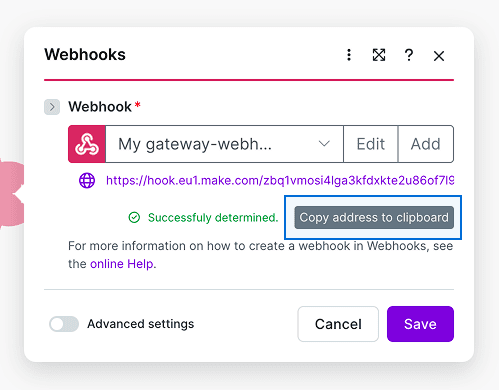
Give your webhook a name and save

3
Make generates a URL — click Copy address to clipboard
3
Add webhook event in Hunar Voice
1
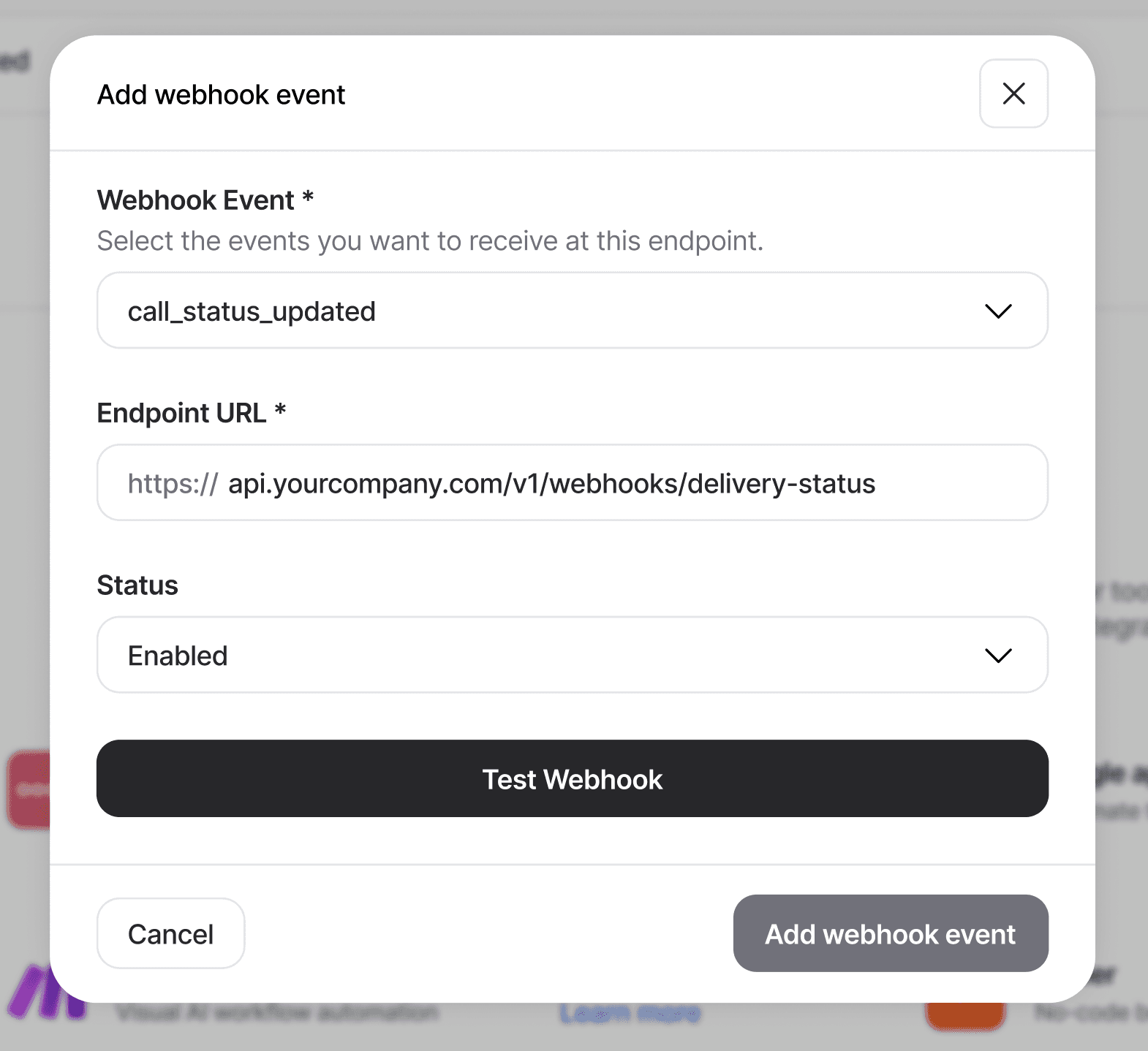
Go to integrations tab, and click on the Add Webhook event button.

2
You'll see the Add Webhook modal pop up

3
Choose your webhook event, and paste the URL you got from make.com.
4
Test the connection
1
Back in Make, click Run once at the bottom — it starts listening

2
In Hunar, click Test Webhook in the Add Webhook modal

3
Switch back to Make — you'll see all the data that was received

5
Build your scenario after the webhook
1
Example scenarios
Router — branch based on a filter, e.g. status = COMPLETED
Google Sheets — use Add a Row and map fields like result.interested, duration_minutes
Slack / Gmail — send a message when a lead qualifies
HTTP module — forward data to your CRM or internal API






Ready to manage your workforce better?




Bluejay Worktech Pvt. Ltd
contact@hunar.ai
CIN: U72200HR2021PTC100129
Plot No. 1076, Sector 46, Gurgaon - 122003, Haryana, India
© 2026 | All rights reserved.
♥︎ Made with love in India.