Notion
A cloud-based productivity platform that lets you create, organize, and collaborate on notes, documents, databases, and project trackers — all in one place. It works by building pages that can contain anything from rich text and media to tables and kanban boards, with the flexibility to structure information however you need it, whether for personal use or team collaboration.
How to get responses from Hunar Voice into Notion using webhooks.
1
Create the Notion database
1
In Notion, create a new Database

2
Name it something like Hunar Call Log.

3
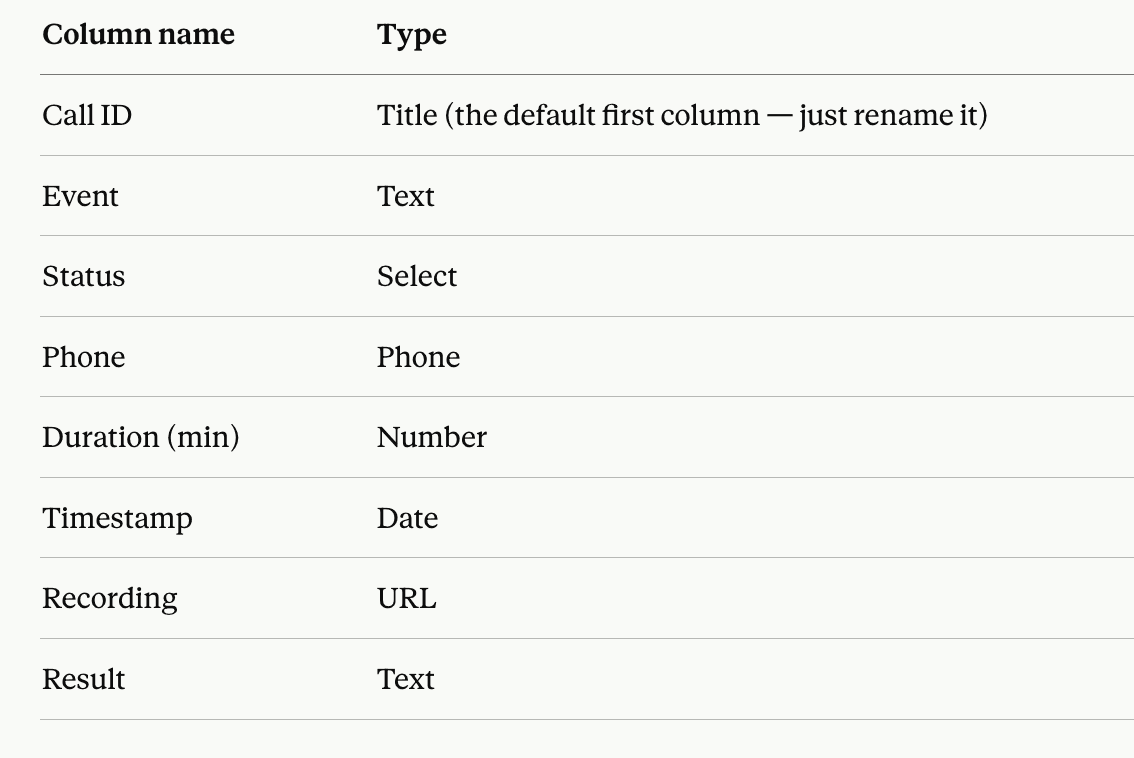
Set up these columns (exact names matter — the code references them):
2
Create a Notion integration
1

2
Click New integration.

3
Name it Hunar Webhook, pick your workspace, click Create Connection.

4
Copy the Integration Secret token (starts with secret_ or ntn_). Keep it handy.

3
Connect the database to your integration
1
Open your Hunar Call Log database.

2
Click the ⋯ menu (top right) → Connections → Connect to → pick Hunar Webhook.

3
Click Add to page

4
Grab the database ID
1
Click the ⋯ menu (top right) → Copy link

2
The URL looks like:
https://notion.so/yourworkspace/abc123def456...?v=....
3
The chunk between the last / and the ? is your database ID. Copy it.
https://notion.so/yourworkspace/abc123def456?v=....
5
Create the Apps Script
1
Go to script.new to create a new Apps Script project.

2
Name it Hunar to Notion (top left).

3
Delete the default code and paste this:
4
Replace paste-your-notion-secret-here with the token from Step 2.

5
Replace paste-your-database-id-here with the ID from Step 4.

6
Click Save (Cmd/Ctrl + S).

6
Deploy as a Web App
1
Click Deploy → New deployment.

2
Click the gear icon → Web app.

3
Set: Execute as: Me & Who has access: Anyone. This is required so Hunar can reach it

4
Click Deploy

5
Authorize access

6
Click Continue

7
Copy the Web app URL and click on done.

7
Add webhook event in Hunar Voice
1
Go to integrations tab, and click on the Add Webhook event button.

2
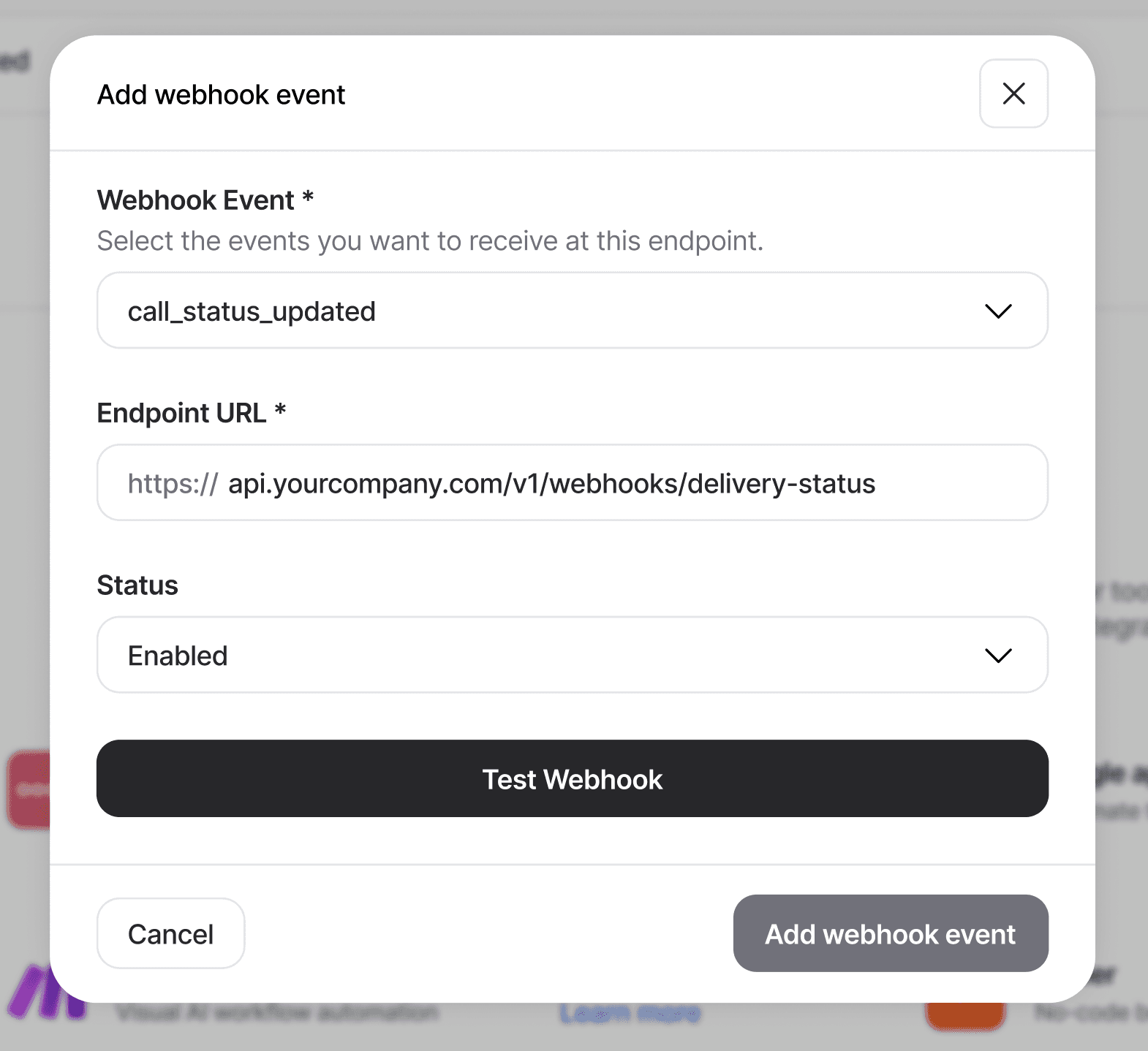
You'll see the Add Webhook modal pop up

3
Choose your webhook event, and paste the URL you got from Google Apps Script.
4
Click Test Webhook

5
Back in Notion, You should see a test row appear in your database within a few seconds.

6
Click Add webhook event to save.

8
What to try next
1
Add a Created By Agent column and populate it from
data.agent_id
2
Use Notion's filters and views to build a dashboard — e.g., a view that shows only calls where
Status = COMPLETED and Result contains "Yes"